> For the complete documentation index, see [llms.txt](https://docs.whereby.com/llms.txt). Markdown versions of documentation pages are available by appending `.md` to page URLs; this page is available as [Markdown](https://docs.whereby.com/whereby-product-features/transcribing/recording-transcriptions.md).
# Recording Transcription
Recording Transcription allows you to get a transcript of any session recording stored in Whereby-provided storage
{% hint style="info" %}
Recording Transcription is a supplementary feature of our paid Whereby Embedded plans. You can review the pricing and options [on our site](https://whereby.com/information/embedded/pricing/).
{% endhint %}
## Summary
Recording Transcription is available by default for all session recordings stored in Whereby-provided storage, and there is no need to enable or configure this feature. Recording transcripts are derived from recordings and saved as text files accessible through the Dashboard or via the API. They can be used as a standalone resource (eg. for compliance purposes) or sent to an external service for post processing (eg. to derive key topics or create a session summary).
## Setup
To produce a transcript from a recording of a Whereby session, you need to follow these steps:
1. Create a Whereby room with cloud recording enabled and configured to use Whereby-provided storage.
2. Record the session.
3. Trigger the transcription for the recording.
## How does it work?
You can use Recording Transcription manually through the Dashboard, or programmatically with the combination of API requests and webhook events.
### Manual Transcriptions
In order to use Recording Transcription, you need to first configure meeting recordings to use cloud recording with Whereby-provided storage. Go to the “**Configure**” → “**Recording**” section of your Dashboard and choose the "Whereby-hosted cloud recording" option with the trigger and recording format of your choice. [Learn more about recording options](/whereby-product-features/recording-with-embedded/cloud-recording.md).
{% hint style="info" %}
When configuring cloud recording options via the Dashboard, they will be applied as default settings for all rooms and meetings. However, you can override the defaults by specifying different preferences in the POST requests used to create meetings.
{% endhint %}
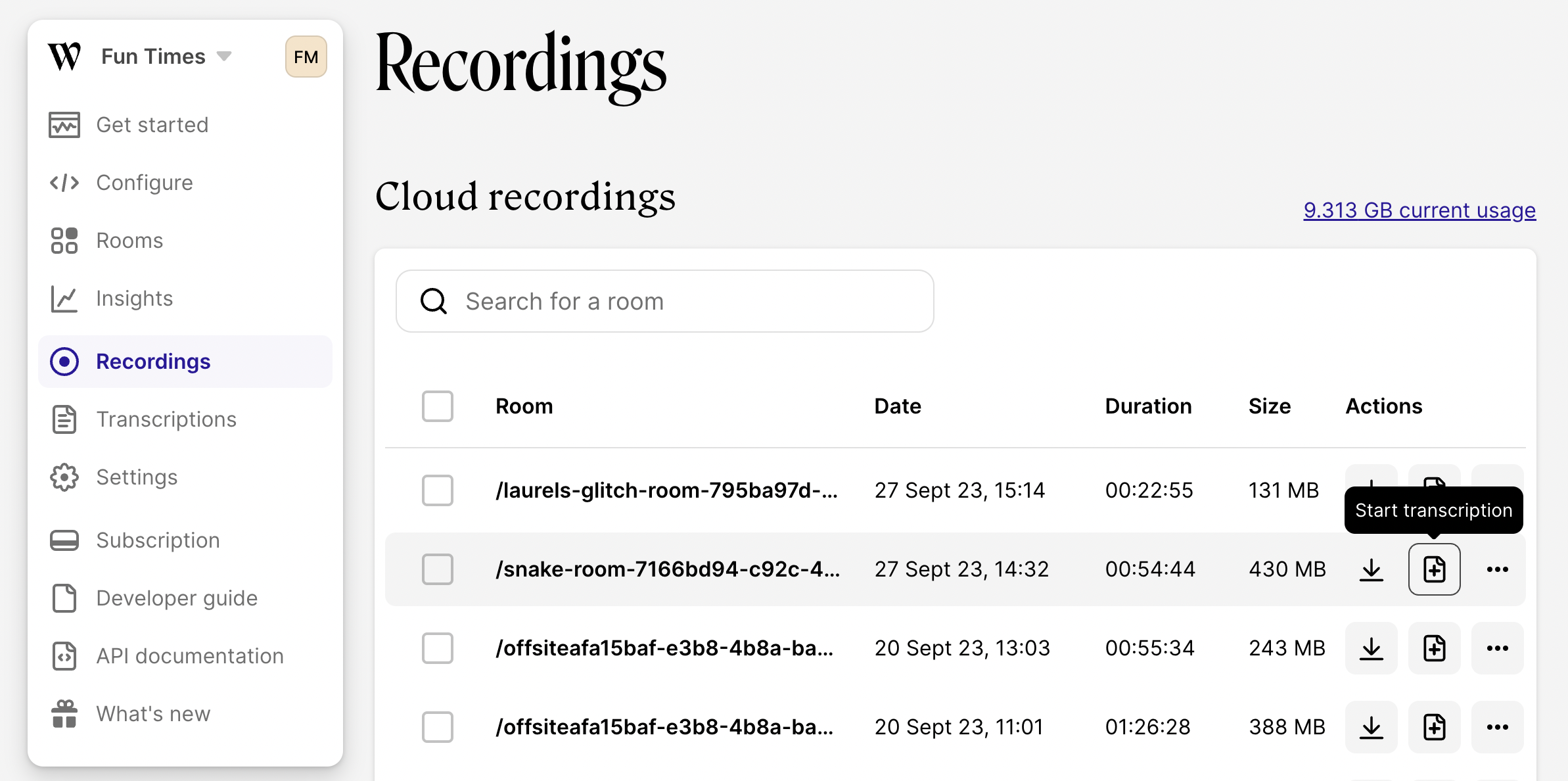
When the sessions get recorded, you can access all recordings saved in the Whereby-provided storage from the “**Recordings**” page of your Dashboard. Find the session that you want to transcribe and choose the "**Start transcription**" option from the Actions column.
Start the transcription for selected recording of a Whereby session
The transcription process may take some time, especially for recordings longer than 30 minutes. Once the transcript is ready, you can download it. The transcript is downloaded as an .md file.
Download the transcript from the session recording
You can also download or delete transcriptions that have been already created from the “**Recordings**” page of your Dashboard.
### Programmatic Recording Transcriptions
If you want to automate the process of transcribing recorded Whereby sessions, you can do so with a combination of API requests and webhook events.
#### Configure session recording
First, make sure that meetings are configured to use cloud recording with Whereby-provided storage:
* If you want to use cloud recording with Whereby-provided storage **globally for all rooms**, go to the “**Configure**” → “**Recording**” section of your Dashboard and choose the "Whereby-hosted cloud recording" option with the trigger and recording format of your choice.
* If you prefer to set the **recording type for each room or meeting individually**, create the meeting with a [POST /meetings](/reference/whereby-rest-api-reference/meetings.md#post-meetings) request using the following parameters for recording (with the `"startTrigger"` and `"fileFormat"` of your choice):
```json
"recording": {
"type": "cloud",
"destination": {
"provider": "whereby",
"fileFormat": "mp4"
},
"startTrigger": "none"
},
```
#### Record and transcribe the session
Depending on the type of recording trigger specified for the meeting, it will be recorded automatically, or the host will need to start the recording manually.
When the recording is completed, Whereby sends a `recording.finished` [webhook](/whereby-product-features/insights-suite-and-api/webhooks.md) event. Hook onto that event to fetch the `recordingId` of the session that you want to transcribe.
Then, send a [POST /transcriptions](/reference/whereby-rest-api-reference/transcriptions.md#post-transcriptions-bulk-delete) request with the `recordingId` to start the transcription job.
The transcription process may take some time, especially for recordings longer than 30 minutes. Once the transcript is ready, Whereby sends a `transcription.finished` [webhook](/whereby-product-features/insights-suite-and-api/webhooks.md) event. Hook onto that event to fetch the `transcriptionId` of the session that you want to transcribe.
Send a [GET /transcriptions/{transcriptionId}/access-link](/reference/whereby-rest-api-reference/transcriptions.md#get-transcriptions-transcriptionid-access-link) request to get the download link of the transcription file. Transcripts are downloaded as .md files.
#### Delete the recording and transcription files
Both the recording and the transcript of the session will be stored in the Whereby-provided storage until you delete them. If you want to optimize the cost or minimize the time when your sessions' content is stored in the Whereby-provided storage, you can delete the assets with 2 API requests:
* [DELETE /recordings/{recordingId}](/reference/whereby-rest-api-reference/recordings.md#delete-recordings-recordingid)
* [DELETE /transcriptions/{transcriptionId}](/reference/whereby-rest-api-reference/transcriptions.md#delete-transcriptions-transcriptionid)
## Supported Languages
Recording Transcriptions feature automatically identifies the dominant language spoken in the session and creates a transcript in this language. The following languages are supported: Chinese, Dutch, English, French, German, Hindi, Indonesian, Italian, Japanese, Korean, Portuguese, Russian, Spanish, Swedish, Turkish, Ukrainian.
## Known limitations
1. Recording Transcriptions are only available for session recordings stored in Whereby-provided storage. If you store session recordings in your own Amazon S3 bucket, it will be not possible to trigger transcriptions for these recordings.
2. Since recording transcripts are derived from recordings saved in Whereby-provided storage, this feature is not considered to be HIPAA compliant. Avoid using recording transcription in order to maintain HIPAA compliance of your Whereby sessions. [Learn more about Whereby HIPAA compliant setup](/telehealth-industry-solutions/hipaa-compliant-setup.md).
3. Recording Transcriptions sometimes fail for recordings of sessions longer than 45 minutes, so it is recommended to use this feature for shorter sessions. We will not charge you for failed transcriptions.