> For the complete documentation index, see [llms.txt](https://docs.whereby.com/llms.txt). Markdown versions of documentation pages are available by appending `.md` to page URLs; this page is available as [Markdown](https://docs.whereby.com/whereby-product-features/live-captions.md).
# Live Captions
Live Captions (or closed captions) provide AI-powered, real-time text representation of spoken content during events within a meeting room, such as presentations, meetings, or videos.
## Summary
{% hint style="success" %}
Live Captions are currently in Open Beta.
{% endhint %}
{% hint style="info" %}
Live captions is a supplementary feature of our paid Whereby Embedded plans. The price will depend on your **Embedded plan** type and the **language** chosen.
**Primary languages\*:**
* **Build (monthly)** plan: $0.0065 per unmuted participant minute.
* **Enterprise (annual)** plan:
* $0.0055 per unmuted participant minute (for pre-purchased minutes).\*\*
* $0.0065 per unmuted participant minute (for over usage).
**Secondary languages\***:
* Both plan types: $0.024 per unmuted participant minute.
**\*** Currently, our primary languages include: English, Spanish, Italian, French, Portuguese, and German. All other languages are secondary languages at this time.\
\*\* To pre-purchase minutes, please reach out to your CSM.
{% endhint %}
{% hint style="info" %}
*What is an unmuted participant minute?* This is calculated using the number of participants who are unmuted during a call. For example, a 60 minute meeting containing 2 people who are unmuted for the whole meeting would use 120 unmuted participant minutes. Alternatively, a 60 minute meeting with 3 participants, where only 2 participants were unmuted and the third participant was muted for the whole meeting, would also use 120 unmuted participant minutes. From the moment a participant is unmuted, this usage counts towards the number of unmuted participant minutes, even if they do not actively talk or engage on the call.
{% endhint %}
## How does it work?
Live Captions, or closed captions, automatically generate real-time text on the screen of a meeting room during the meeting itself. These open captions usually focus on key spoken content and may not include every single word, like filler words.
Primarily used for real-time accessibility, Live Captions help participants follow along as the meeting progresses without needing to listen to the audio.
## Setup
You can enable and configure Live Captions globally for your account, or individually for each room.
### Global configuration
When you enable Live Captions globally through the Dashboard, these settings become the default for all rooms and sessions. Enabling Live Captions globally will result in all meetings being captioned. You can override these global settings by specifying the caption on a per room basis.
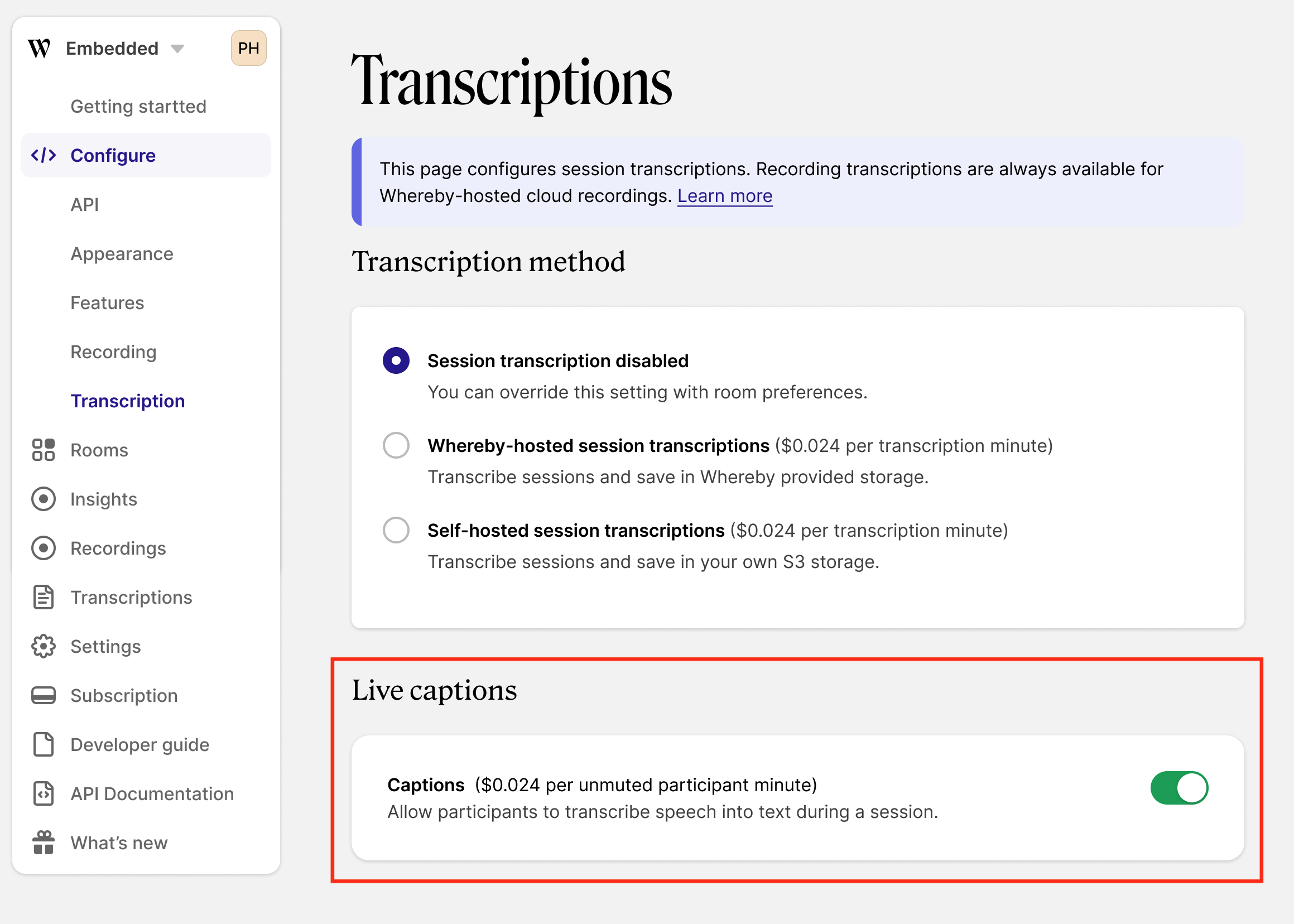
If you want to use Live Captions for all of your meetings, you can enable it globally for your account. Go to “**Configure**” → “**Transcription**” section of your Dashboard and scroll down to the "**Live Captions**" section. Then, toggle the Live Captions feature on:
To disable Live Captions, you can use the same toggle to them toggle off. Now there will be no closed captioning in your meetings on a global level.
### Per room configuration
If you want to use Live Captions for some of your meetings, or if you need a different configuration for some of them, you can configure Live Captions individually for the room. Room parameters will override the global Live Captions settings.
{% hint style="warning" %}
The default language set on your organization’s dashboard can be overridden on a room level. This could result in the price charged for your use of live captions/session transcriptions being impacted. Please refer to the price for different languages at the top of the page for further details.
{% endhint %}
To do so, create the room with [POST /meetings](/reference/whereby-rest-api-reference/meetings.md#post-meetings) request and specify the live caption configuration. It's a sub-property of the `liveTranscription` object.
For example, if you want a meeting with just live captions, and not live transcriptions, you can specify the `liveCaptions` option in the `liveTranscription` property, but set the `startTrigger` to `none`.
```json
"liveTranscription": {
"startTrigger": "none",
"liveCaptions": true
}
```
## Additional Information
### Supported languages
Live Captions generate real-time speech to text in the specified language. You need to declare the language used by your session participants in advance - in the [global configuration](#global-configuration) or [per room](#per-room-configuration).
Live caption supported languages
* Catalan (ca)
* Chinese (Mandarin, Simplified) (zh)
* Chinese (Mandarin, Traditional) (zh-TW)
* Czech (cs)
* Danish (da)
* Dutch (nl)
* English (en)
* Finnish (fi)
* French (fr)
* German (de)
* German - Switzerland (de-CH)
* Greek (el)
* Hindi (hi)
* Indonesian (id)
* Italian (it)
* Japanese (ja)
* Korean (ko)
* Latvian (lv)
* Malay (ms)
* Norwegian (no)
* Polish (pl)
* Portuguese (pt)
* Brazilian Portuguese (pt-BR)
* Romanian (ro)
* Russian (ru)
* Slovak (sk)
* Spanish (es)
* Swedish (sv)
* Thai (th)
* Turkish (tr)
* Ukrainian (uk)
* Vietnamese (vi)
### HIPAA compliance
Live Captions is designed to protect ePHI (Electronic protected health information) and supports compliance with the HIPAA Security Rule.
## Known limitations
1. Currently, the language spoken cannot be auto-detected. For example, if the meeting is configured for English but French is spoken in the meeting, the language output will likely be incoherent. In this case, you will still be charged per unmuted participant minute for the configured language.
2. We don't show data related to Live Captions in the Insights Dashboard.
3. Live Captions are not available in the Whereby iOS app.