# Real-time troubleshooting

## Summary

Video meetings depend on various factors. Some of them are within users' control - but only if they are aware of them. Typical root causes of audio and video issues include:

* Poor or unstable internet connection
* High CPU usage due to intensive software processes, running several applications at once, having numerous open browser tabs, or even aging device hardware

## How does it work?

To help users deal with these issues, we provide a suite of real-time troubleshooting tools featuring:

* [Meeting diagnostics](#meeting-diagnostics)
* [Detection of poor network conditions](#detection-of-poor-network-conditions)
* Actionable tips for smoother meetings
* Mode to conserve bandwidth and optimize audio quality by disabling videos

These tools allows participants and hosts to troubleshoot connection issues during calls, aiming to reduce your team’s support tickets and ensure high-quality experiences.&#x20;

***

### **Meeting diagnostics**

{% hint style="info" %}
**CPU usage monitoring** is available exclusively for Chrome on desktop.
{% endhint %}

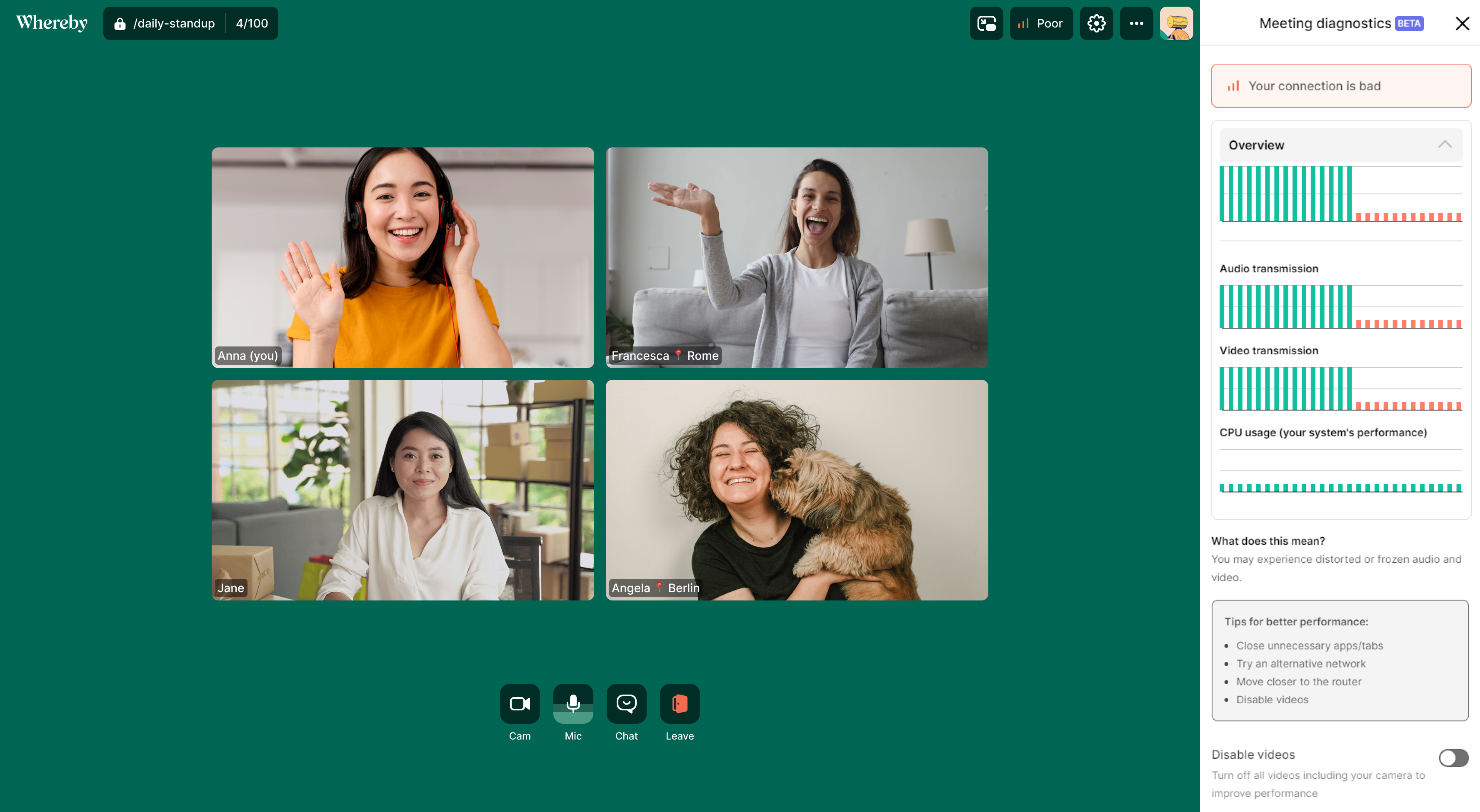
Users can easily access meeting diagnostics and check:

* Overall performance
* Audio transmission
* Video transmission
* CPU usage (exclusive to Chrome on desktop)

<div align="center"><figure><img src="https://content.gitbook.com/content/LH2UIJDLc2EElQvYUxWX/blobs/Mm2crOEYeQM5QMWOnGKz/image.png" alt="" width="255"><figcaption><p>Outlined in red is a new button that provides access to the Meeting diagnostics tools. Clicking this button opens the side panel.</p></figcaption></figure></div>

### Detection of poor network conditions

1. In case of poor network conditions, users see a notification and a red indicator appears:<br>

   <figure><img src="https://content.gitbook.com/content/LH2UIJDLc2EElQvYUxWX/blobs/LtNkhSbLV2kAx7MfjFpw/toptoolbar.png" alt="" width="285"><figcaption></figcaption></figure>
2. Users can expand the panel to access more details and see actionable tips on how to improve the connection:<br>

   <figure><img src="https://content.gitbook.com/content/LH2UIJDLc2EElQvYUxWX/blobs/zpohcPbXpADV3e4PSMWh/image.png" alt="" width="563"><figcaption><p>Meeting diagnostics - example of poor connection.<br></p></figcaption></figure>
3. Meeting participants with poor network conditions will appear with an indicator on their video tile. This helps other participants understand why the affected participant's audio or video quality is lower.<br>

   <figure><img src="https://content.gitbook.com/content/LH2UIJDLc2EElQvYUxWX/blobs/syZy7Y0ivBhNNg1bANja/image.png" alt="" width="375"><figcaption><p>A red indicator is visible next to the name of any participant experiencing connection issues.</p></figcaption></figure>

## Setup

If you already have the Whereby top toolbar enabled, you don’t have to do anything else to configure this, as it will be on by default.

* If you currently hide the Whereby top toolbar by using the URL parameter `topToolbar=off`, please remove this parameter.
* If you currently hide the Whereby top toolbar by using the URL parameter `minimal`, please add a `callQualityMonitoring=on` parameter to the URL.

## **Is it possible to opt-out?**

Yes, it’s possible to opt-out and remove this tool from your experience. We’ve built it to make both yours and your users' experience smoother but understand some of our customers may want to control access to this.&#x20;

If you are using Whereby and want to opt-out of the meeting diagnostics tool, please supply `callQualityMonitoring=off` to the URL when embedding.